Install Docker Desktop
Run the Installer
Section titled “Run the Installer”- Open File Explorer → Downloads
- Double-click
DockerDesktopInstaller(orDockerDesktopInstaller.exe) - On the Configuration screen, match these settings (defaults are fine for most users):
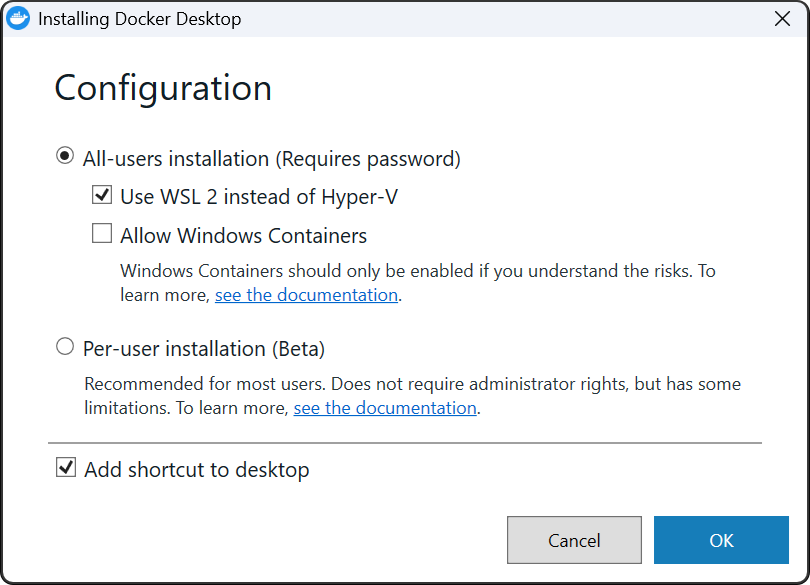
| Option | Required setting |
|---|---|
| All-users installation or Per-user installation | Either is OK — All-users (default) is fine if you have admin rights |
| Use WSL 2 instead of Hyper-V | Checked (required) |
| Allow Windows Containers | Unchecked (leave off unless you specifically need Windows containers) |
| Add shortcut to desktop | Optional (your choice) |
- Click OK
- If Windows shows User Account Control (“Do you want to allow this app to make changes?”), click Yes — this is expected with All-users installation
- Wait for the installation to finish (several minutes)
- When the installer completes, click Close
- If prompted to Close and restart Windows, restart before continuing
If “Use WSL 2” is greyed out or missing: WSL2 is not ready yet. Go back and confirm
wsl --statusshowsDefault Version: 2, then re-run the Docker installer.