Verification Checklist
Step 1: Verify WSL2 Is Running
Section titled “Step 1: Verify WSL2 Is Running”Open PowerShell and run:
wsl --list --verboseExpected:
NAME STATE VERSION* docker-desktop Running 2 Ubuntu-26.04 Running 2- Your Ubuntu distro must show Running and VERSION 2
docker-desktopshould also show Running- The
*(default) may point to eitherdocker-desktoporUbuntu-26.04— both are fine. What matters is that Ubuntu showsRunningandVERSION 2.
Step 2: Verify Docker from WSL2
Section titled “Step 2: Verify Docker from WSL2”Open your WSL2 bash terminal (devuser@...$) and run:
docker --versiondocker psdocker run --rm hello-worldExpected:
docker --versionprints a version string (e.g.,Docker version 28.x.x)docker psreturns an empty container list (no errors)docker run --rm hello-worldprints “Hello from Docker!” and exits cleanly
Step 3: Verify Git Configuration
Section titled “Step 3: Verify Git Configuration”Still in WSL2 bash:
git config --global user.namegit config --global user.emailExpected: Both commands return your configured name and email address.
Step 4: Verify SSH Connection to GitHub
Section titled “Step 4: Verify SSH Connection to GitHub”ssh -T git@github.comExpected:
Hi <your-username>! You've successfully authenticated, but GitHub does not provide shell access.- If you see a host key confirmation prompt, type
yesand press Enter - The important part is the “successfully authenticated” message
Step 5: Verify AWS SSO Login
Section titled “Step 5: Verify AWS SSO Login”aws sso login --profile <your-profile-name>Expected:
- A browser window opens to your AWS SSO portal
- You authenticate and approve the request
- The terminal shows a success message confirming you are logged in
Then verify your credentials are active:
aws sts get-caller-identity --profile <your-profile-name>Expected: JSON output containing your UserId, Account, and Arn.
Step 6: Verify Kiro Connects to WSL
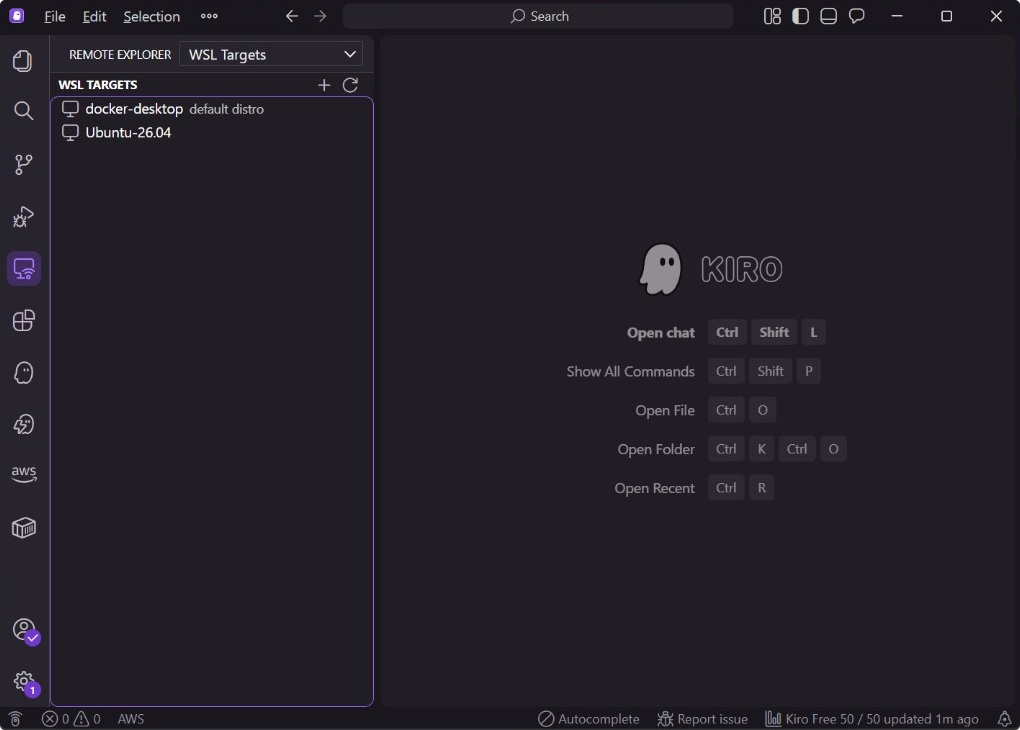
Section titled “Step 6: Verify Kiro Connects to WSL”- Open Kiro IDE on Windows
- Open the Remote Explorer or use the command palette: Remote-WSL: Connect to WSL
- Select your Ubuntu distribution
Expected:
- Kiro connects and the bottom-left indicator shows WSL: Ubuntu-26.04 (or your distro name)
- The integrated terminal opens a WSL2 bash session
Step 7: Verify Workspace Opens Correctly
Section titled “Step 7: Verify Workspace Opens Correctly”In the Kiro WSL terminal:
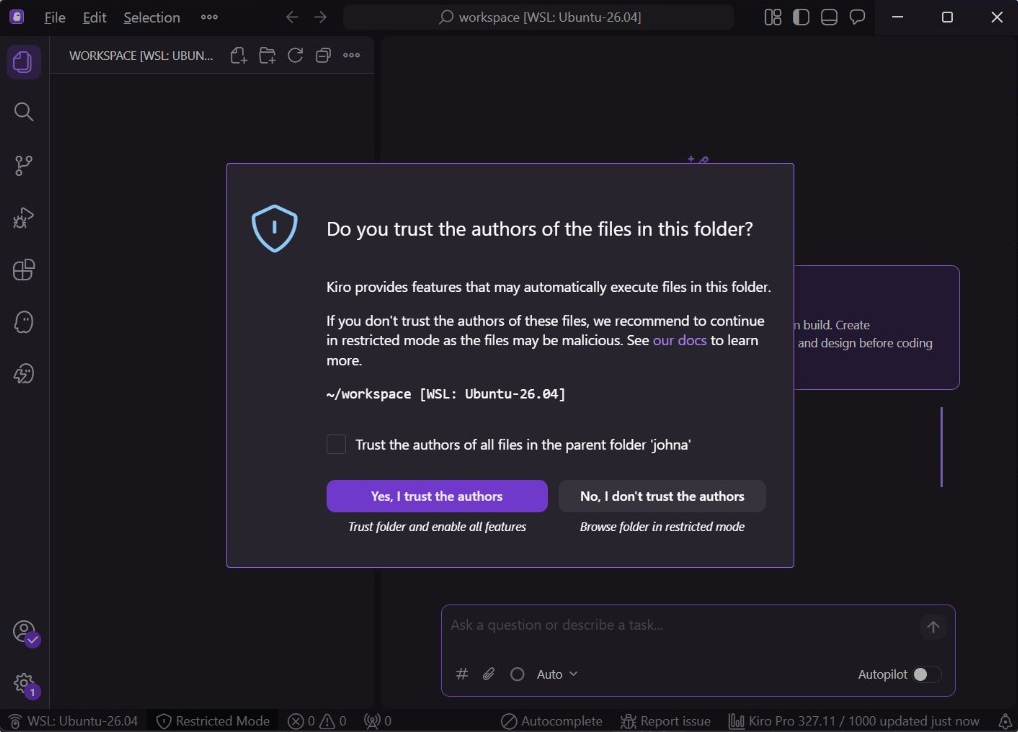
cd ~/workspace/<your-project>Then from Kiro: File → Open Folder → select the project directory inside WSL.
Expected:
- The workspace trust dialog appears — click Yes, I trust the authors
- Files and folders appear in the Explorer sidebar
- The terminal shows your WSL2 bash prompt in the correct directory
Full Environment Checklist
Section titled “Full Environment Checklist”Run this one-shot verification script in WSL2 bash to check multiple components at once:
echo "=== Environment Verification ==="echo ""echo "1. WSL2 kernel:"uname -recho ""echo "2. Docker:"docker --version 2>/dev/null && echo " ✓ Docker accessible" || echo " ✗ Docker not found"echo ""echo "3. Git:"git --versionecho " user.name: $(git config --global user.name)"echo " user.email: $(git config --global user.email)"echo ""echo "4. SSH agent:"ssh-add -l 2>/dev/null && echo " ✓ Keys loaded" || echo " ⚠ No keys loaded (run ssh-add)"echo ""echo "5. AWS CLI:"aws --version 2>/dev/null && echo " ✓ AWS CLI installed" || echo " ✗ AWS CLI not found"echo ""echo "=== Done ==="Expected: All items show version numbers or checkmarks. Address any ✗ items by revisiting the corresponding section.